




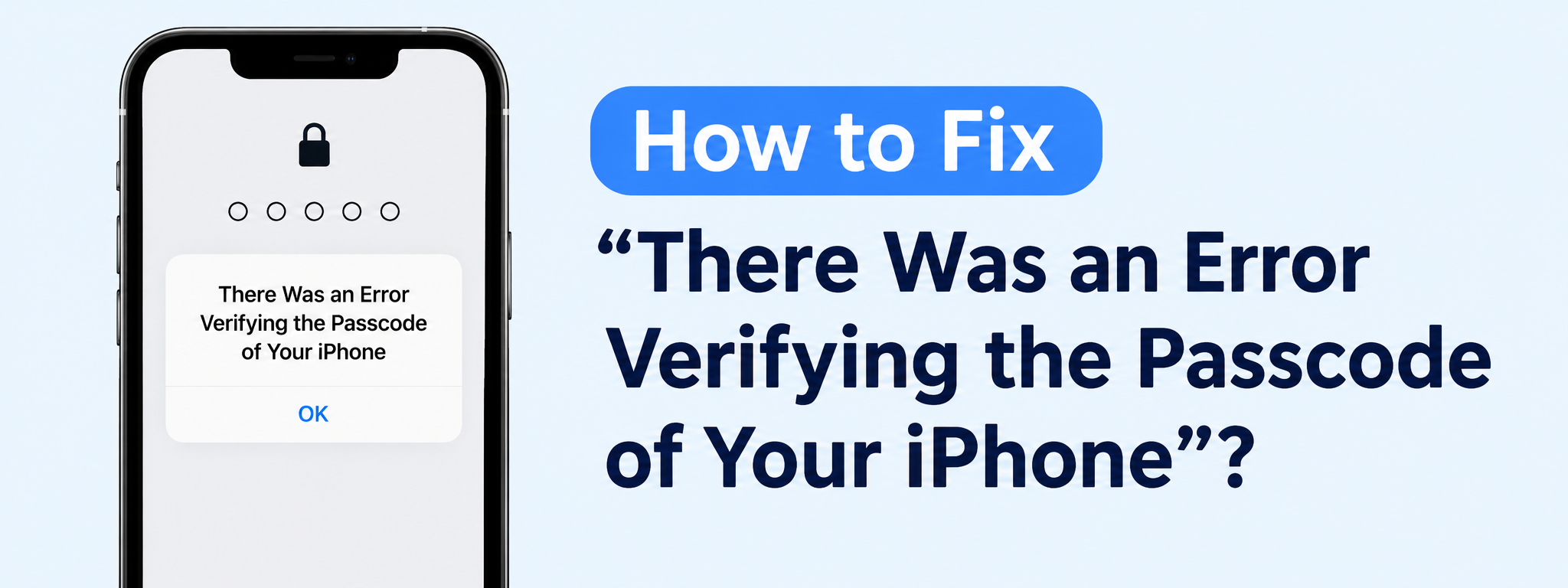
Cum să remediați eroarea „A apărut o eroare la verificarea parolei iPhone-ului”?

Blocarea accesului la iPhone din cauza
„A apărut o eroare la verificarea parolei iPhone-ului tău”
Mesajul poate fi frustrant, mai ales când știi că introduci parola corectă. Această problemă poate fi cauzată de erori temporare ale iOS, erori de software, probleme de conectivitate sau probleme cu verificarea sistemului. Din fericire, poți încerca câteva metode simple de depanare pentru a-ți face iPhone-ul să funcționeze din nou. În acest ghid, te vom prezenta cele mai eficiente soluții și vom introduce un instrument avansat de reparare iOS pentru problemele de sistem mai persistente.
1. Cum se remediază eroarea „A apărut o eroare la verificarea parolei iPhone-ului”?
Încercați următoarele soluții în ordine. Unele metode sunt nedistructive, în timp ce altele pot șterge datele, așa că alegeți cu atenție.
1) Verificați de două ori parola
Asigurați-vă că introduceți codul de acces iPhone corect. Dacă l-ați modificat recent, rețineți că iPhone-ul dvs. poate solicita
noua parolă
Evitați să ghiciți în mod repetat parola, deoarece prea multe încercări eșuate pot dezactiva temporar dispozitivul.
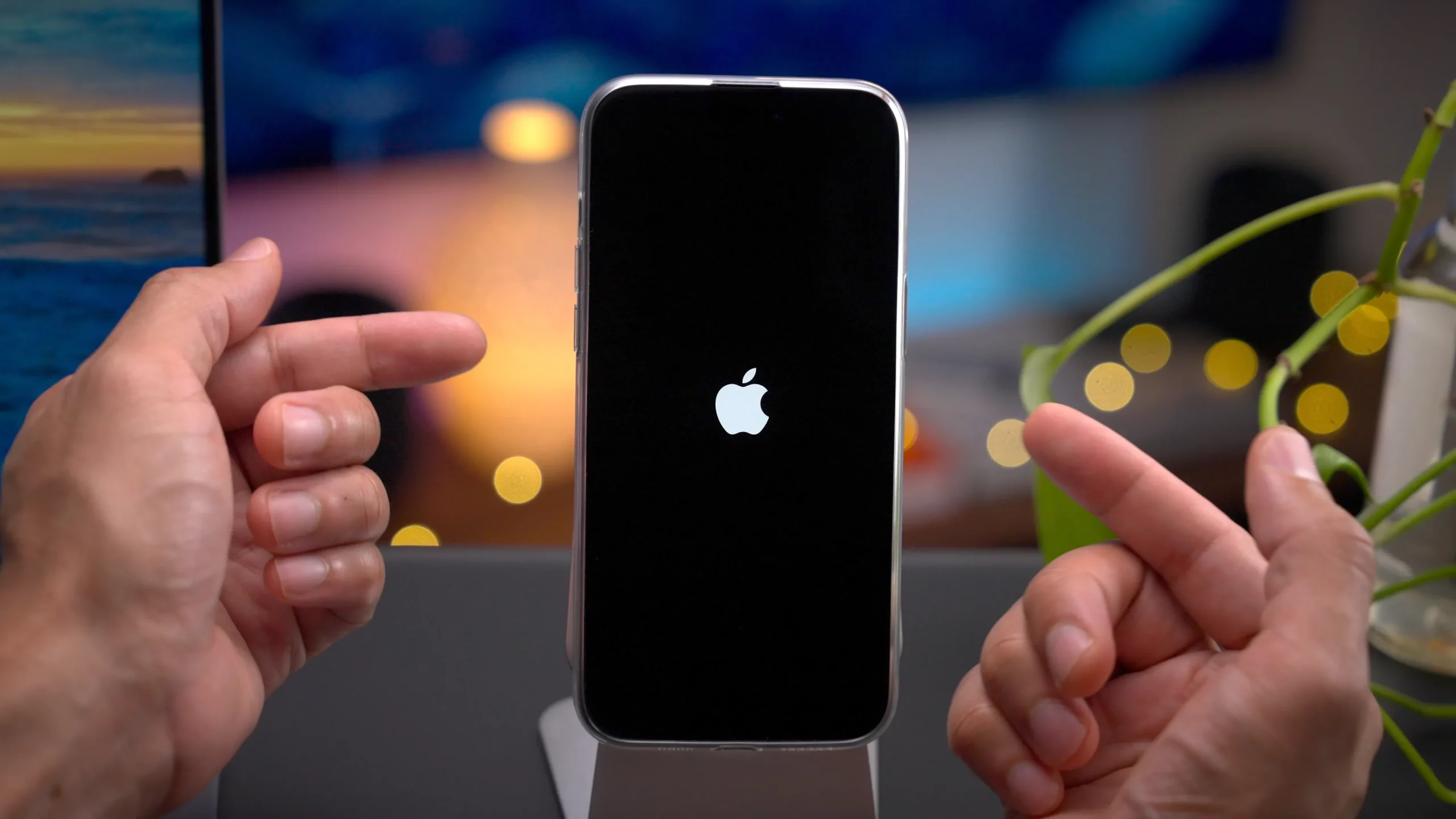
2) Repornirea forțată a iPhone-ului
O eroare temporară de sistem poate interfera cu verificarea parolei. Repornirea forțată a iPhone-ului poate reîmprospăta iOS-ul și poate elimina eroarea.
Pentru majoritatea iPhone-urilor mai noi, apăsați și eliberați rapid
Creșterea volumului
, apăsați și eliberați rapid
Reducerea volumului
, apoi apăsați și țineți apăsat butonul
Partea
până când apare sigla Apple. Încercați să introduceți din nou parola după repornire.
3) Verificați conexiunea la internet
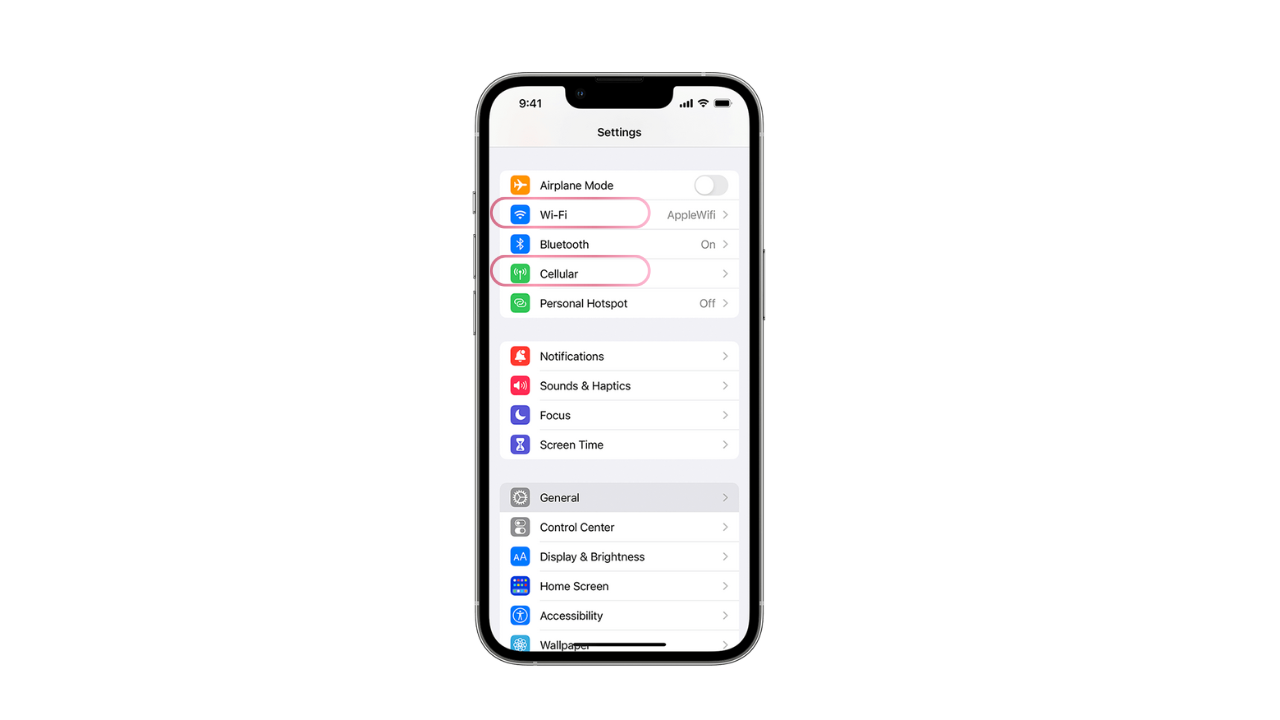
Dacă eroarea este legată de verificarea contului sau a securității, conectează-ți iPhone-ul la o rețea Wi-Fi stabilă sau treci la date celulare, deoarece o conexiune fiabilă la internet poate ajuta iOS să comunice cu serviciile Apple.
4) Actualizați iOS-ul
Erorile de software pot cauza uneori probleme legate de autentificare și parolă. Dacă vă puteți accesa iPhone-ul, accesați
Setări > General > Actualizare software
și instalați orice actualizare disponibilă.
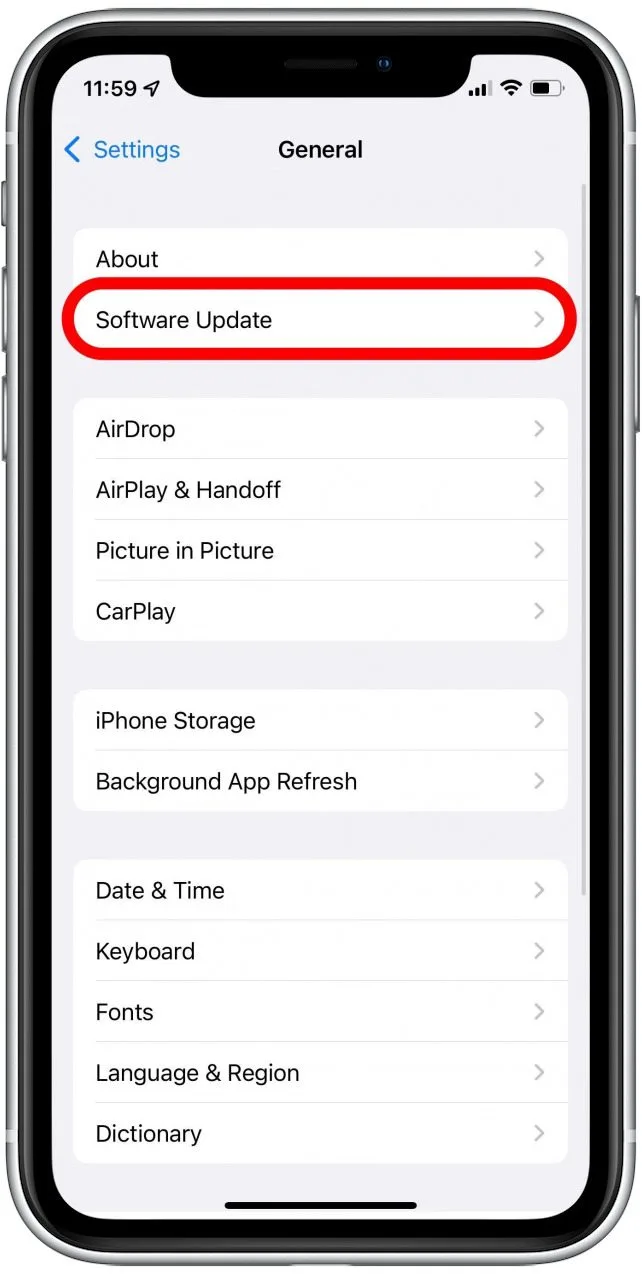
Actualizarea la cea mai recentă versiune iOS compatibilă poate rezolva erorile de sistem cunoscute și poate îmbunătăți stabilitatea dispozitivului.
5) Verificați dacă există probleme cu ecranul tactil
Uneori, problema poate să nu fie de fapt parola. Un ecran tactil deteriorat sau care nu răspunde poate duce la înregistrarea unor numere greșite atunci când introduceți codul.
Curățați și uscați ecranul, scoateți orice accesorii care ar putea interfera cu introducerea tactilă și încercați să introduceți din nou parola. Dacă anumite zone ale ecranului nu răspund în mod constant, este posibil să fie nevoie de service pentru hardware.
6) Conectați iPhone-ul la un computer
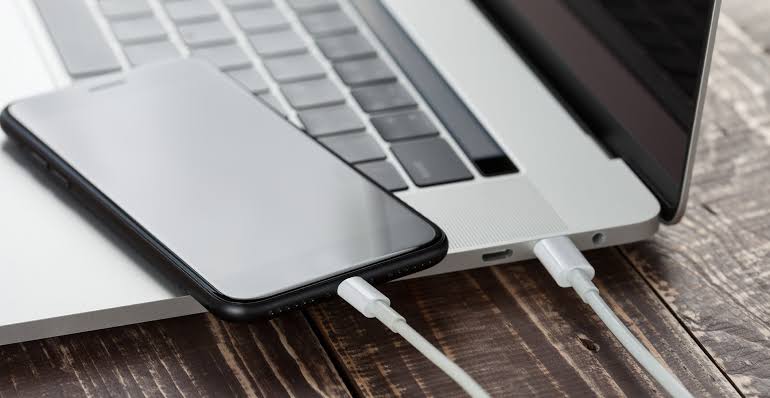
Dacă nu poți accesa iPhone-ul în mod normal, conectează-l la un computer Mac sau Windows și folosește instrumentele de gestionare a dispozitivelor Apple pentru a încerca mai întâi să actualizezi dispozitivul, deoarece restaurarea acestuia ar putea șterge datele tale.
7) Folosește modul de recuperare
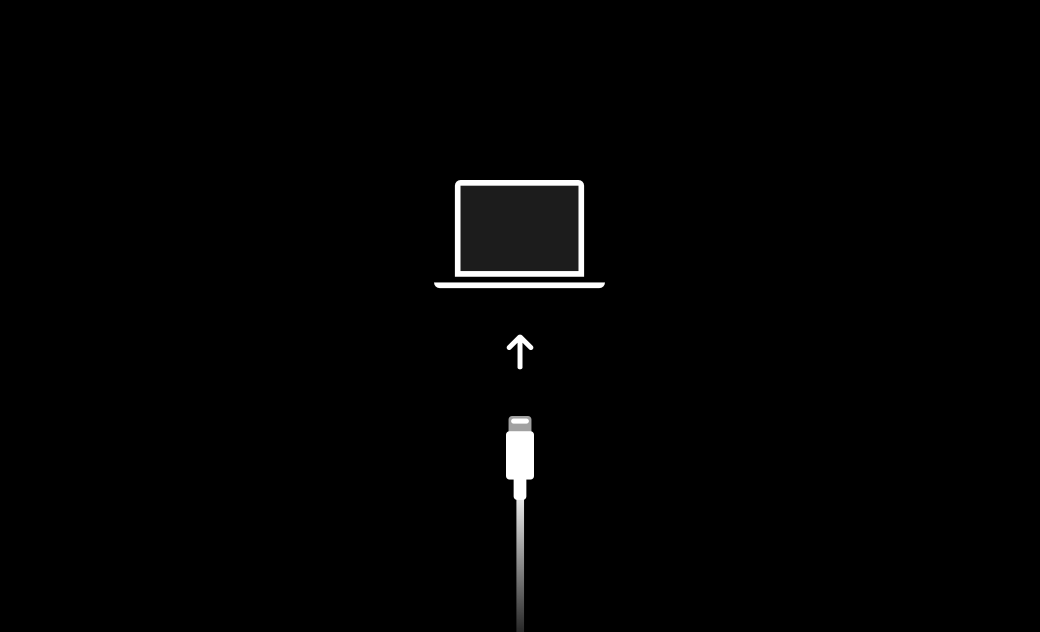
Modul de recuperare poate fi de ajutor atunci când iPhone-ul se blochează, nu pornește corect sau continuă să întâmpine probleme software grave.
Conectați iPhone-ul la un computer, intrați în modul Recuperare folosind combinația de butoane corespunzătoare modelului dvs., apoi utilizați Finder sau software-ul de gestionare a dispozitivelor Windows de la Apple pentru a actualiza sau restaura dispozitivul.
O actualizare poate reinstala iOS fără a șterge imediat datele, în timp ce o restaurare elimină, în general, conținutul existent al dispozitivului.
8) Restaurați iPhone-ul
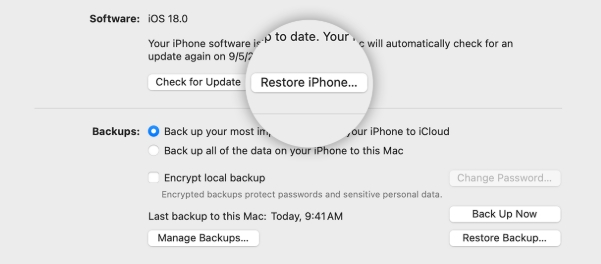
Dacă alte soluții eșuează, restaurarea iPhone-ului ar putea rezolva probleme grave de software. Totuși, aceasta ar trebui considerată o ultimă soluție, deoarece restaurarea poate șterge datele și setările.
După restaurare, puteți configura din nou iPhone-ul și restaura informațiile dintr-o copie de rezervă disponibilă.
2. Bonus: Remedierea avansată a erorilor de sistem iOS cu AimerLab FixMate
Dacă niciuna dintre soluțiile de bază nu funcționează, problema poate fi cauzată de o eroare de sistem iOS mai profundă. În această situație, AimerLab FixMate oferă o alternativă convenabilă pentru depanarea manuală a problemelor complicate de sistem.
FixMate este un program de reparare a sistemului iOS conceput pentru a ajuta la remedierea a peste 200 de probleme legate de software pe iPhone și iPad, inclusiv eroarea de verificare a parolei. În loc să necesite proceduri tehnice complicate, oferă un proces de reparare ghidat care permite utilizatorilor să depaneze dispozitivele lor de pe un computer.
Cum se utilizează FixMate pentru a repara problemele iOS:
- Descărcați și instalați AimerLab FixMate pe computerul dvs. cu Windows sau Mac.
- Folosește un cablu USB pentru a conecta iPhone-ul afectat la computer, apoi Lansați FixMate, găsiți „Remediați problemele sistemului iOS” și faceți clic pe „Start”.
- Începeți cu Reparare standard dacă doriți să încercați să reparați sistemul păstrând în același timp datele, apoi f Urmați instrucțiunile pentru a descărca pachetul de firmware corespunzător.
- Confirmați procesul de reparare și permiteți FixMate să reinstaleze sau să repare componentele iOS necesare.
- După finalizarea procesului, reporniți dispozitivul și verificați dacă eroarea de verificare a parolei a fost rezolvată.
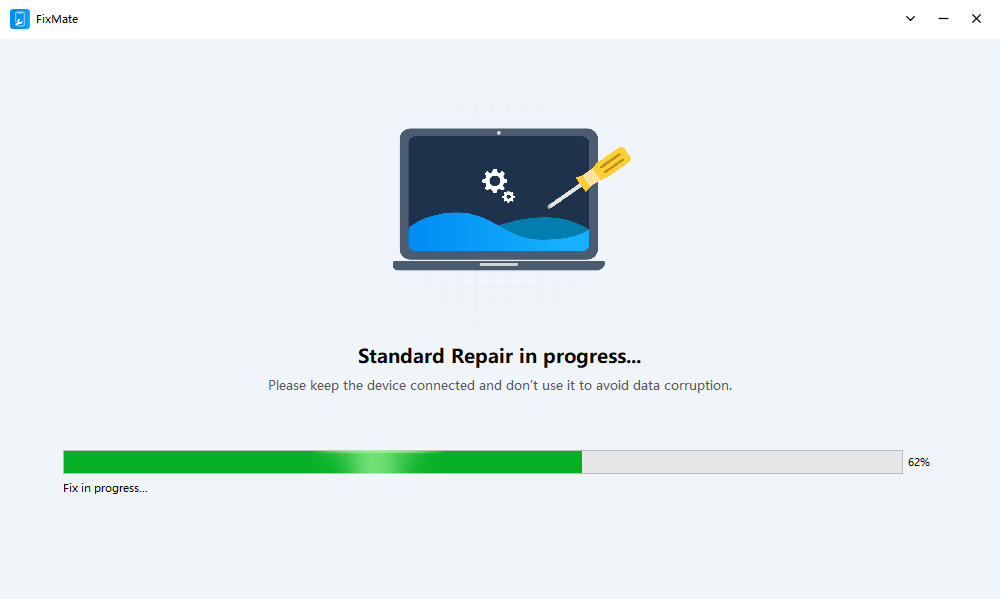
Dacă Repararea Standard nu rezolvă problema, puteți lua în considerare Repararea Avansată. Cu toate acestea, repararea avansată poate șterge datele, așa că utilizați-o numai după ce ați înțeles riscul potențial de pierdere a datelor și ați făcut o copie de rezervă a informațiilor ori de câte ori este posibil.
3. Concluzie
Mesajul „A apărut o eroare la verificarea parolei iPhone-ului” nu înseamnă întotdeauna că parola este greșită. Erori temporare ale iOS, probleme de conectivitate, probleme ale ecranului tactil, software-ul învechit și erorile de sistem mai grave pot contribui la probleme de verificare neașteptate.
Începeți prin a verifica parola, a reporni iPhone-ul, a verifica conexiunea la internet și a actualiza iOS. Dacă aceste soluții rapide nu funcționează, puteți încerca să conectați dispozitivul la un computer, să utilizați modul de recuperare sau să restaurați iPhone-ul.
Pentru o soluție mai convenabilă la problemele iOS mai complexe,
AimerLab FixMate
Merită încercat. Modurile sale ghidate de Reparare Standard și Reparare Avansată pot simplifica procesul de depanare a diverselor erori de sistem iOS fără a necesita proceduri manuale complicate. Dacă remedierile standard eșuează, FixMate poate fi un pas util pentru a vă ajuta să reparați iPhone-ul și să îl readuceți la funcționare normală.
- Cum se rezolvă eroarea 1110 de pe iPhone?
- Cum să remediați blocarea mesajului „Așteptarea altui iPhone”?
- Cum să remediezi descărcarea iOS 26 care durează o veșnicie?
- Cum să vezi locațiile frecvente pe iPhone?
- De ce este iOS 26 atât de întârziat?
- Cum să remediați blocarea funcției „Finalizare pe iPhone nou”?
- Cum să falsificați Pokemon Go pe iPhone?
- Prezentare generală despre Aimerlab MobiGo GPS Location Spoofer
- Cum să schimbi locația pe iPhone-ul tău?
- Top 5 falsuri false de localizare GPS pentru iOS
- Definiție GPS Location Finder și Spoofer Sugestie
- Cum să-ți schimbi locația pe Snapchat
- Cum să găsiți/partajați/ascundeți locația pe dispozitivele iOS?